
My Replay Script is getting 409, what does that mean?
Short answer
If your Store Sessions replay script is getting an HTTP 409 response, the
shop has usually hit its monthly session usage limit.
The replay endpoint rejects new buyer sessions once the current plan's session quota is exhausted. Existing captured sessions can still be viewed in the app, but new sessions will not be stored again until the usage window resets or the shop moves to a plan with more session capacity.
What the replay script response means
The replay script sends captured browser events to Store Sessions in the background. When the shop has no remaining session capacity, the API returns a conflict response instead of saving the new session.
In practical terms:
- The script is installed and reaching Store Sessions.
- The request is not failing because of a missing script tag.
- The shop needs more monthly session capacity, or it needs to wait for the next billing cycle.
Step 1: Check usage in the sidebar
Sign in to Store Sessions and look at the usage card in the left sidebar. For this walkthrough, we used a test account named Demo with a 1,000-session monthly limit.
The sidebar shows the current plan and the current session count against the monthly limit.
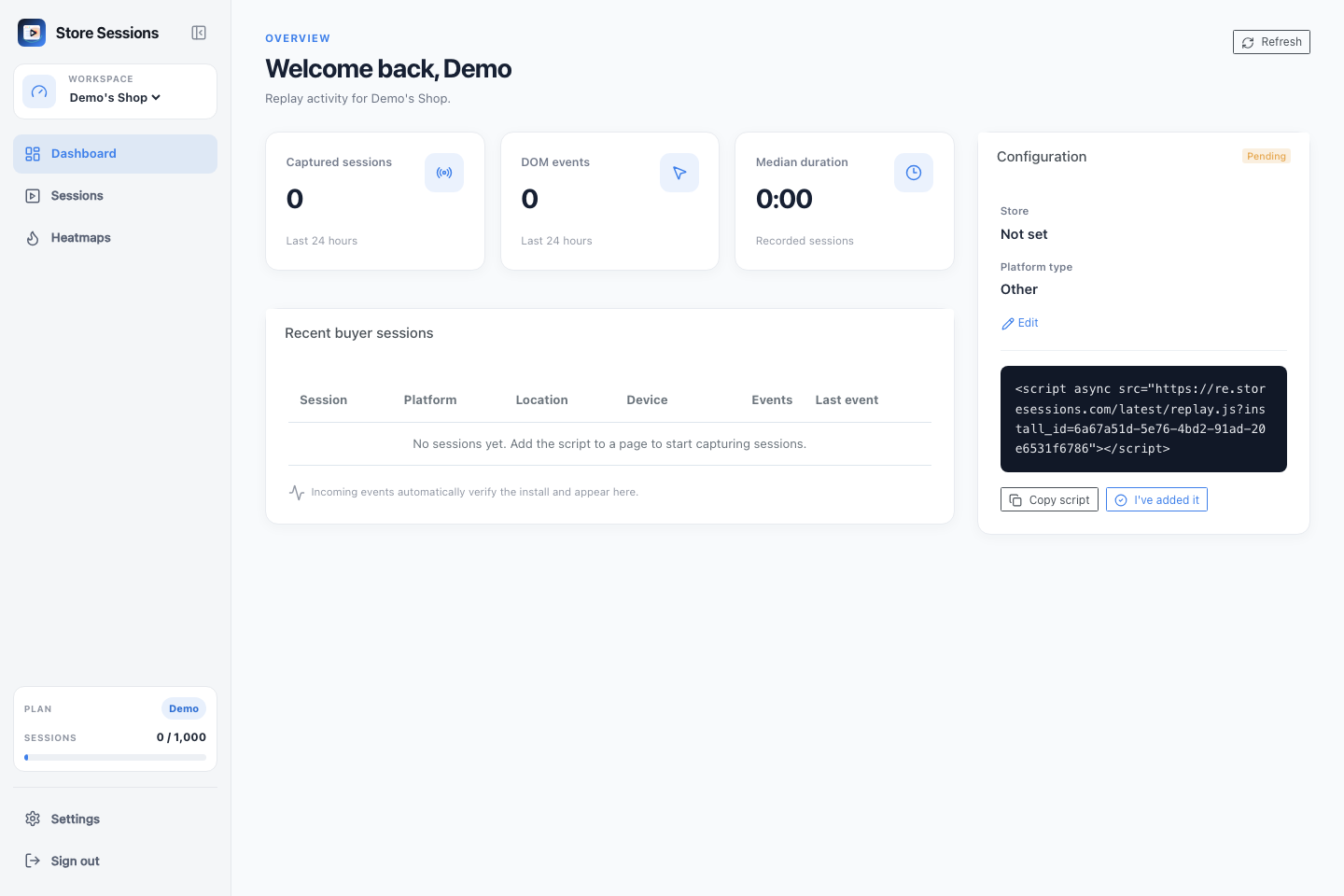
In this example, the Demo shop shows 0 / 1,000 sessions. If that number
reaches the plan limit, new replay script requests can start returning 409.
Step 2: Open Billing settings
To upgrade, open Settings from the sidebar, then choose Billing.
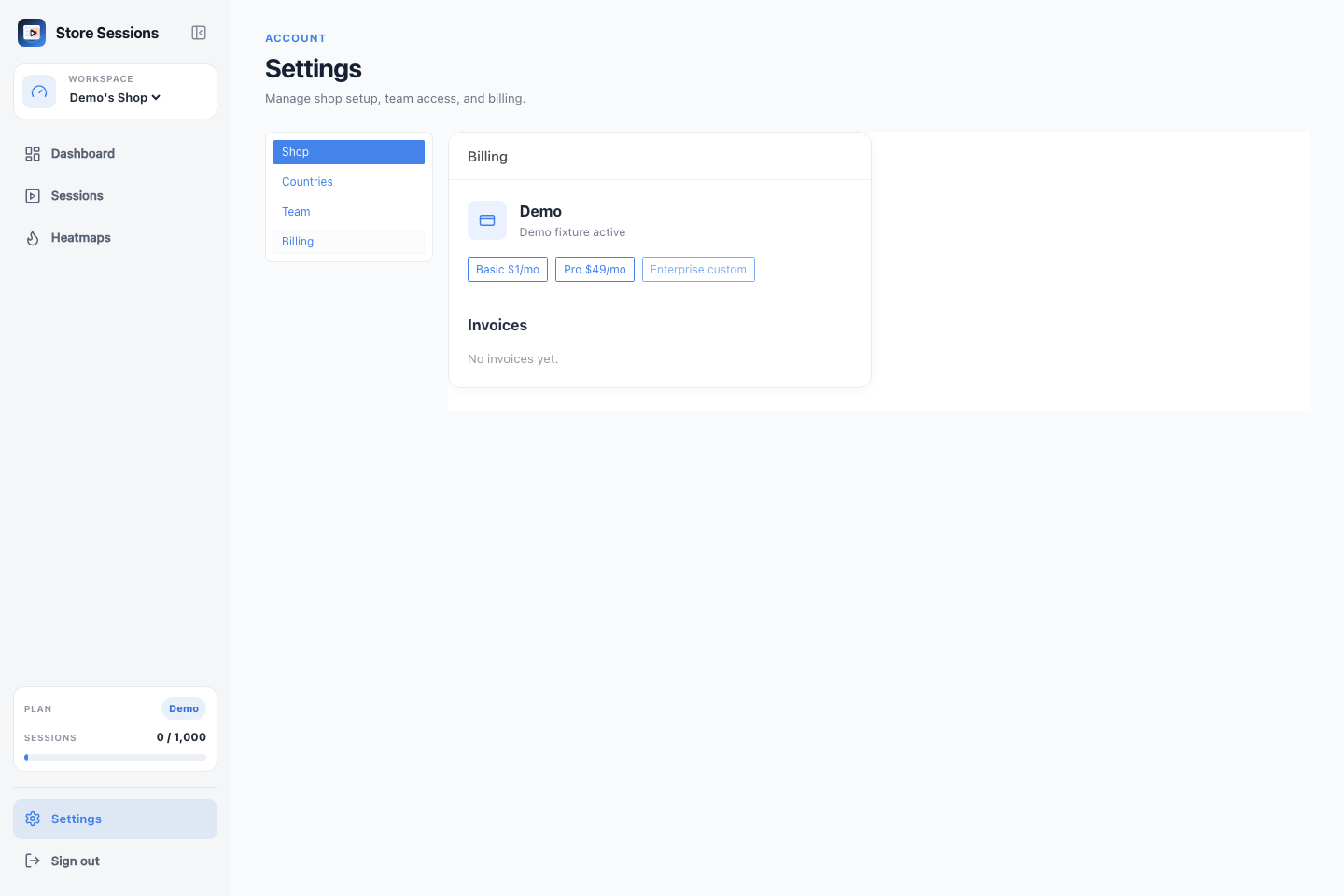
The Billing page shows the current plan and the available upgrade options. Pick the plan that gives your shop enough monthly replay capacity. If checkout opens, complete the billing flow to activate the plan.
Step 3: Confirm capturing resumes
After upgrading, return to the dashboard and check the sidebar usage card again. The plan and available session capacity should update after the billing change is applied.
Then visit your storefront in a browser and create a new test session. New buyer sessions should start appearing again once the shop has available session capacity.
What if usage is not at the limit?
If the sidebar does not show usage at the limit, check the browser network
response body for the exact error. A usage-limit conflict is usually returned
with a session_limit_reached error.
If you still see 409 responses after upgrading or after the next billing
cycle starts, contact support with the shop name and the replay request error
details.